
A custom menu can allow you to easily change the main navigation of your site away from the ‘default’ navigation the theme provides (either alphabetical or in order of creation). This can make your site feel more well-planned and allow your ideas to flow. Further, it affords the opportunity to add ‘categories’ to your main navigation as a way of sharing your posts on a particular topic in a threaded conversation that appears to show up on its own page.
To see an example of a custom menu, click on the
Reflections tab in the menu on this site. You might create a ‘resources’ category or ‘reflections’ category to share and organize posts you make. Utilizing categories can really help make your site more dynamic and searchable!

This video will briefly introduce how to create a custom menu for your blog. In this video, you will learn how to create a custom menu to organize your posts and pages step-by-step.
For more tips and tricks on blogging in teacher education, please visit: Blogging in Teacher Education
For support with UBC blogs, please visit https://blogs.ubc.ca/support/
Posted in 4-7, 8-12, English, Fine Arts, Not Subject Specific, Resource | Tagged with app, create, design, Free, image search, infographic, Presentation, Teacher Use

Canva is a web-based and IOS application that you can use to create attractive infographics such as logos, blog banners and invitations. It allows users to use its drag-and-drop feature with professional layouts to design their own creative graphics. With their Free version, you can use templates and invite people to collaborate and share their work. NOTE: Canva is not Canadian housed. Visit this post to learn more about protecting student privacy.
Here is an example of what a Canva infographic might look like:
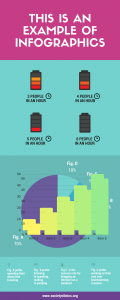
The application is designed in a way that encourages its users to keep their content simple and attractive. Canva is all about highlighting the key ideas without cluttering your information, which can often be unattractive or overwhelming to viewers. In addition, Canva offers many free photos and templates that you can use in your class presentations, conference posters, reports, etc.
As a teacher, you can use Canva to design your posters and infographics to use in your classes and, depending on permissions and access, your students might use Canva to create and share their own visuals.

- Go to the Canva website and click “Start for Free” on the front page.
- Enter your information, and confirm your email address.
- Log in to Canva with your newly created account and get creating.

As a teacher creating a blog or portfolio, protecting privacy isn’t just about protecting yourself but is also about being mindful of your students. As you build your blog, you’ll want to ensure that you protect student privacy –
please note that you may upload student work product and images (with appropriate permissions and/or with respect to privacy) on UBC Blogs since it is housed in Canada.When you are ready to submit and share your work, you will want to ensure your permissions are set correctly to allow people to view your blog.
This video will talk about how to change the privacy settings of your blog. To change the overall privacy settings in your blog, from your
‘Dashboard’, navigate to
‘Settings’ and select
‘Reading‘ (in some themes, select ‘Privacy’) and make the adjustments that suit your needs.
You will have several different options to choose from, including if you want the search engines to index your blog, or who can get access to your blog. By selecting” Allow search engines to index this site, ” your potential employees would easily find your blog while searching your name in search engines. By selecting “Discourage search engines from indexing this site”, you will make your blog more private and it’s hard for people to find it without being offered with your link.
In addition, as you can see from the list below, you can choose different options to make your site visible to different groups: during the initial developing session, you can choose the third option to make it invisible to other people; while it’s done, you can choose to share your blog with everyone (the first option) or only with your subscribers (the second option).
- I would like this site to be visible only to registered network users.
- I would like my site to be visible only to site subscribers.
- I would like my site to be visible only to site administrators.
This video presents a simple demonstration in exploring electrostatic phenomena using commonly available materials. Both the teachers and students can easily follow the procedures and minimal supervision is needed.
created using Camtasia by Teacher Candidates in EDCP 357 December 2016 as part of an in-class assignment supported by Dr. Marina Milner-Bolotin along with her GAAs (Solmaz & Gerald) and our TLEF coop student (Katya)
Bring your lunch to the Scarfe Sandbox and practice incorporating portfolio based assessment using FreshGrade with your class.
FreshGrade is a free application being used in Districts across the lower mainland and BC to support interactive, learner centered, formative assessment and communicating student learning with parents.
*FreshGrade is
‘FOIPPA’ compliant – all data is house in Canada!
Try it out. Sign up for a free account.
See the ‘Getting Started Guide’
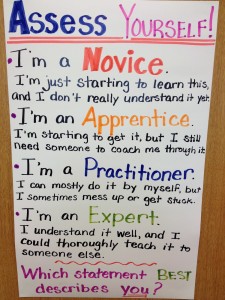
We have a small group of TCs wishing to explore freshgrade is more depth meeting from 1:00 – 1:50. Join us if you can. Novices to Experts – we can learn with and from each other!
Otherwise, drop in beforehand to consult about this or other tech integration questions/topics and/or to look for help integrating technology into your assignments or planning for practicum!